How to set up monthly value reports in Outloop
Choose who receives each report, schedule it for a closed calendar month and preview the PDF. If a task is missing, duplicated or counted as a test, correct its record before generating the report.
What the two reports are
Outloop can e-mail two kinds of monthly report. They are set up in two different places.
| Comparison | Client report (per workspace) | Management report (organization) |
|---|---|---|
| Who reads it | The client of one workspace (e.g. the client's marketing director) | Your own management (CEO, head of operations) |
| What it covers | That one workspace's completed work last month | Every eligible workspace, one line per client |
| Where to set it up | Workspace Settings › Communication › Monthly value report | Activity & Reports › Value › Monthly management email |
| Who can receive it | People of that workspace who have an e-mail address | People in Company People |
| Starts sending | On the next scheduled send day after you save with "Send automatically every month" ticked | Only after a separate, explicit Enable automatic monthly sending with an authorization tick |
| Attachments | Simple one-page PDF; optional detailed PDF | Organization PDF; optional detailed PDF |
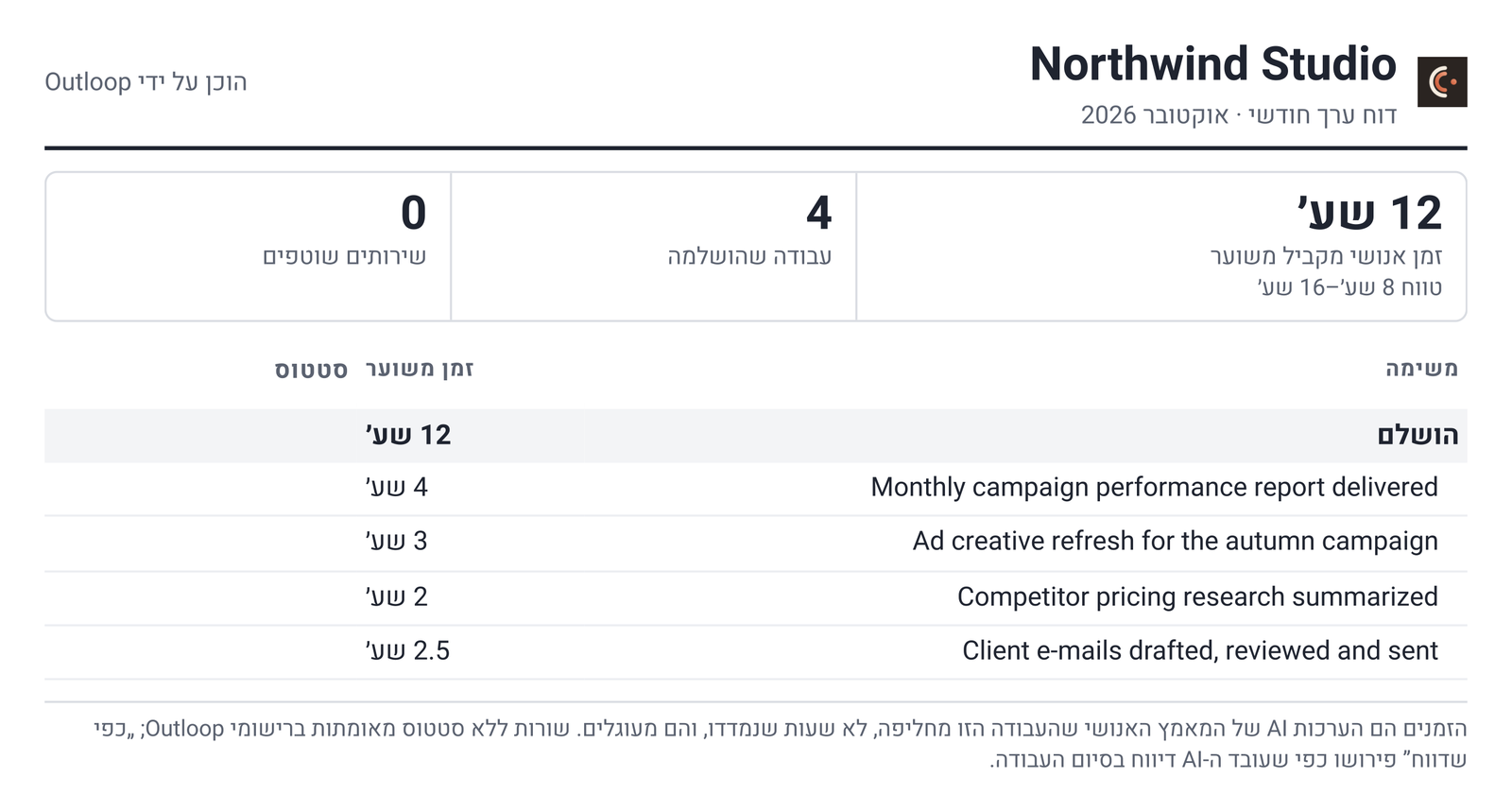
| Languages | English or Hebrew | English or Hebrew |
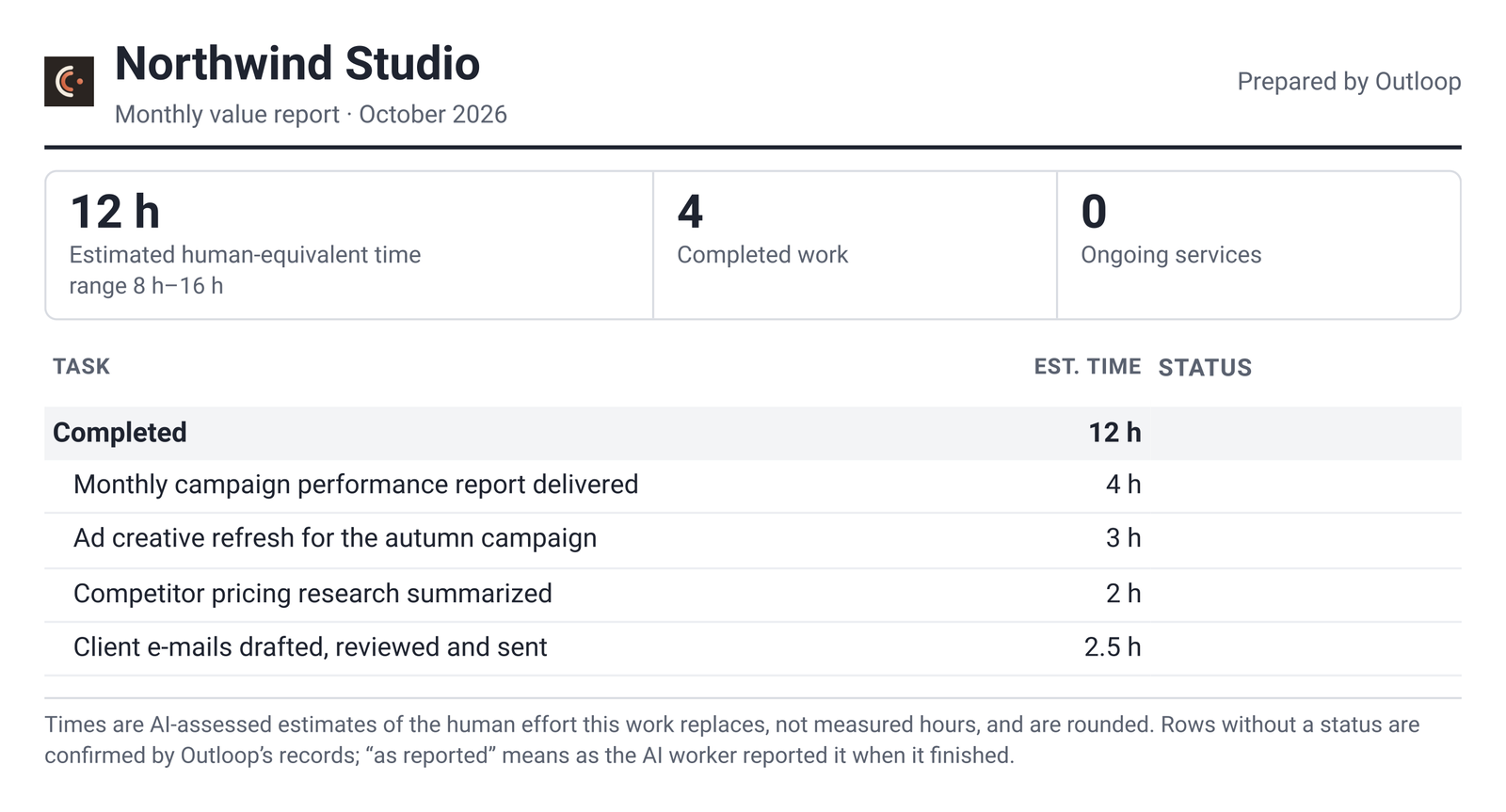
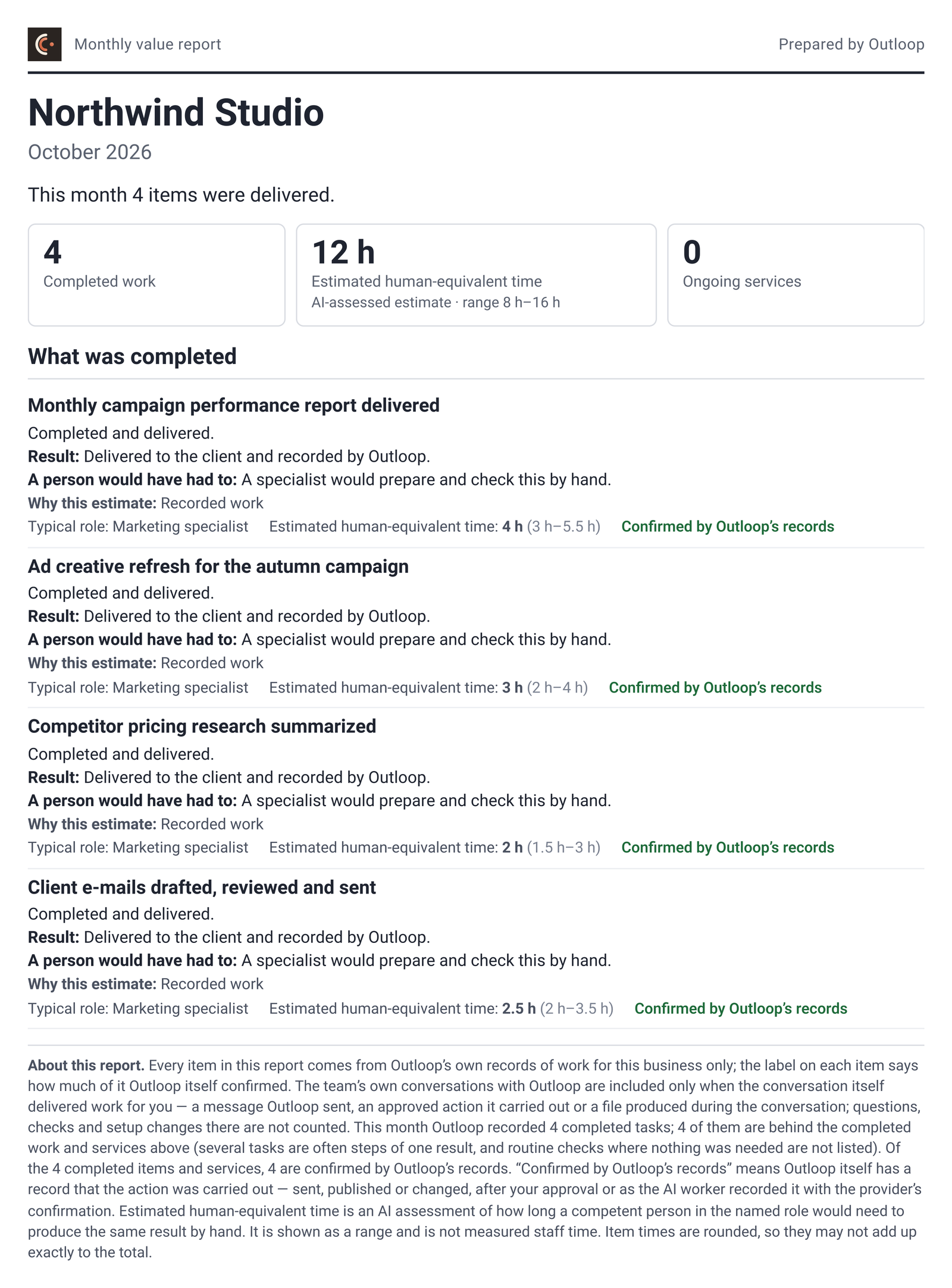
Both reports show Estimated human-equivalent time: an AI assessment of how long a competent person would need to produce the same result by hand. It is shown with a range and is not measured staff time.
Before you start
- A Gmail connection that can send. "Send from" lists Gmail connections only. For the client report the Gmail grant must be in that workspace; the management report can use any workspace's Gmail connection. Without one, the form says "Choose a mailbox that can send."
- Recipients exist as People with an e-mail address.
- Client report → add the client's people in Workspace Settings › People (screenshot 04). If nobody has an address: "No one in this workspace has an e-mail address yet. Add people first."
- Management report → your managers must be in Settings › Company People (screenshot 13).
- Work is being recorded as Business work. Only completed business tasks are counted (section 6).
- An AI engine that is ready on this Mac. The report text is written by AI from the recorded work, so preparing a month takes a few minutes and needs the Mac awake with a ready engine. If the engine is busy or not ready, Outloop retries on later hourly runs and finally shows the month as needing attention.
Set up the client report
-
Choose the client's workspace in the header picker. On the workspace home, click People and communication (screens 01–02). Note: there is no "Workspace Settings" item in the left menu; the link on the workspace home (or any "Workspace settings" link) opens it.
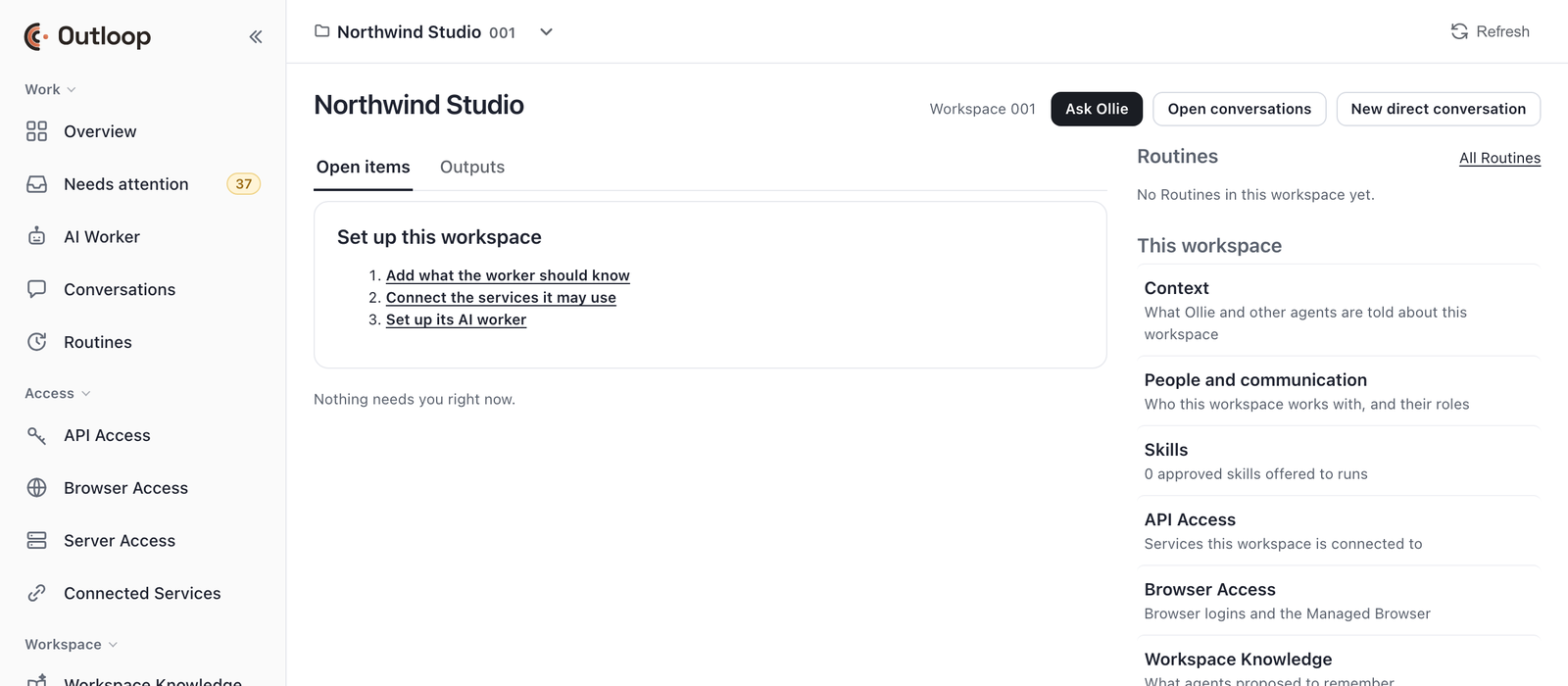
01 Choose the client's workspace in the header. 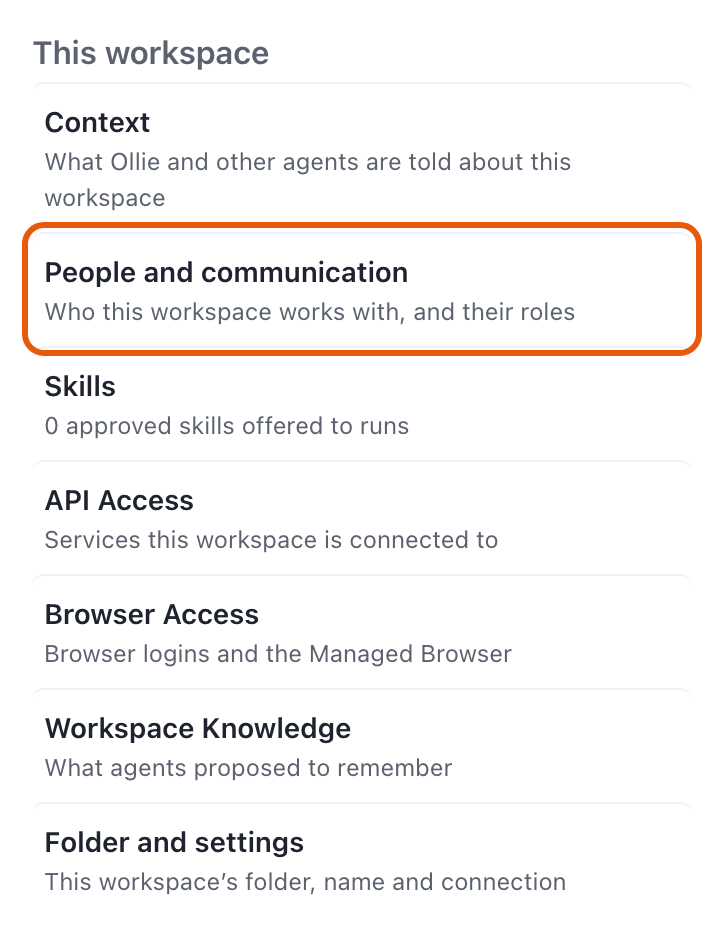
02 Workspace Settings opens from the workspace home. -
Open the Communication tab (screenshot 03).
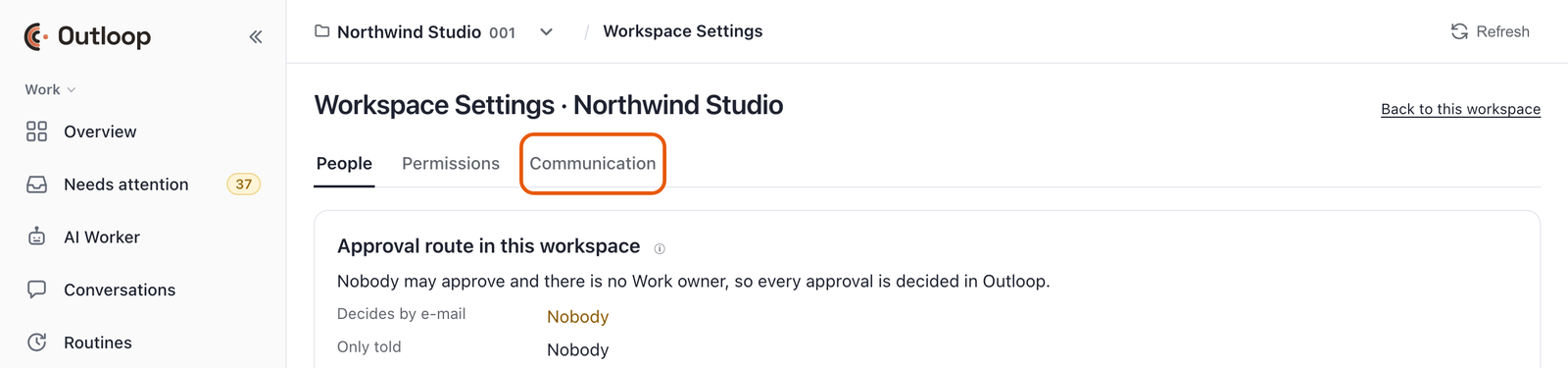
03 The monthly report lives on the Communication tab. 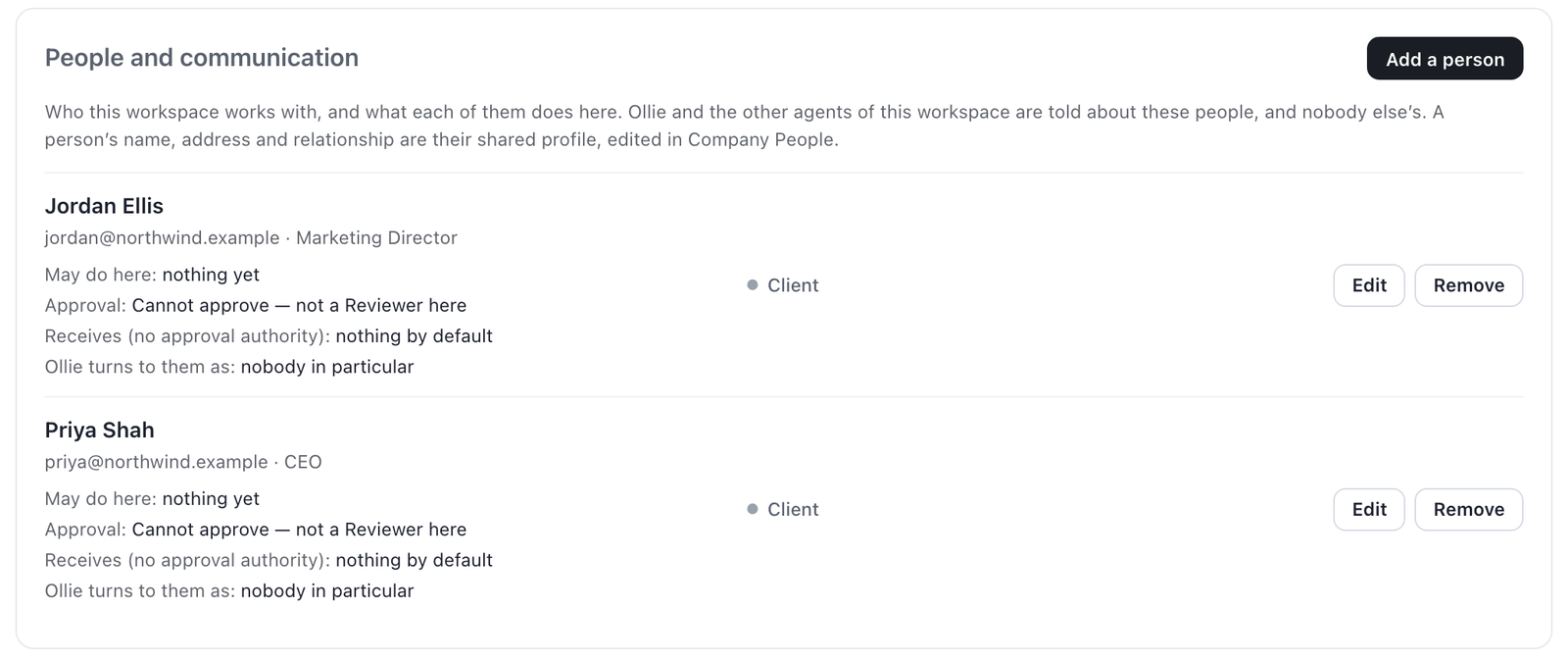
04 Recipients of the client report are this workspace's people with an e-mail address. -
Check Reporting and future runs first (screenshot 05) — see section 6 for what the two settings mean. For a normal client both should read Business — included and Business work.
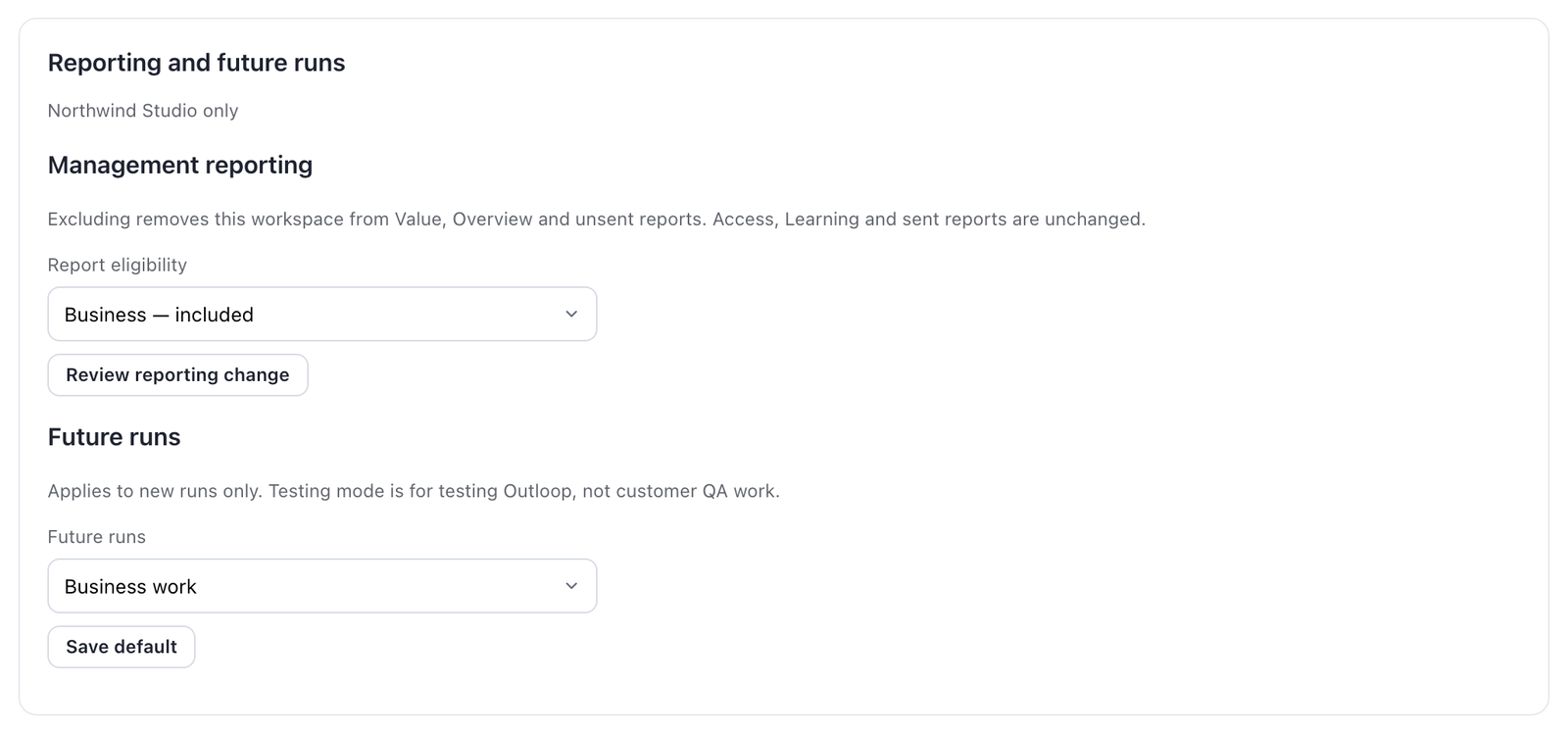
05 Report eligibility controls the management report; Future runs classifies new runs. -
Find the Monthly value report card. It reads "Off" until set up (screenshot 06). The Business name in the report is the workspace name; Rename changes it.
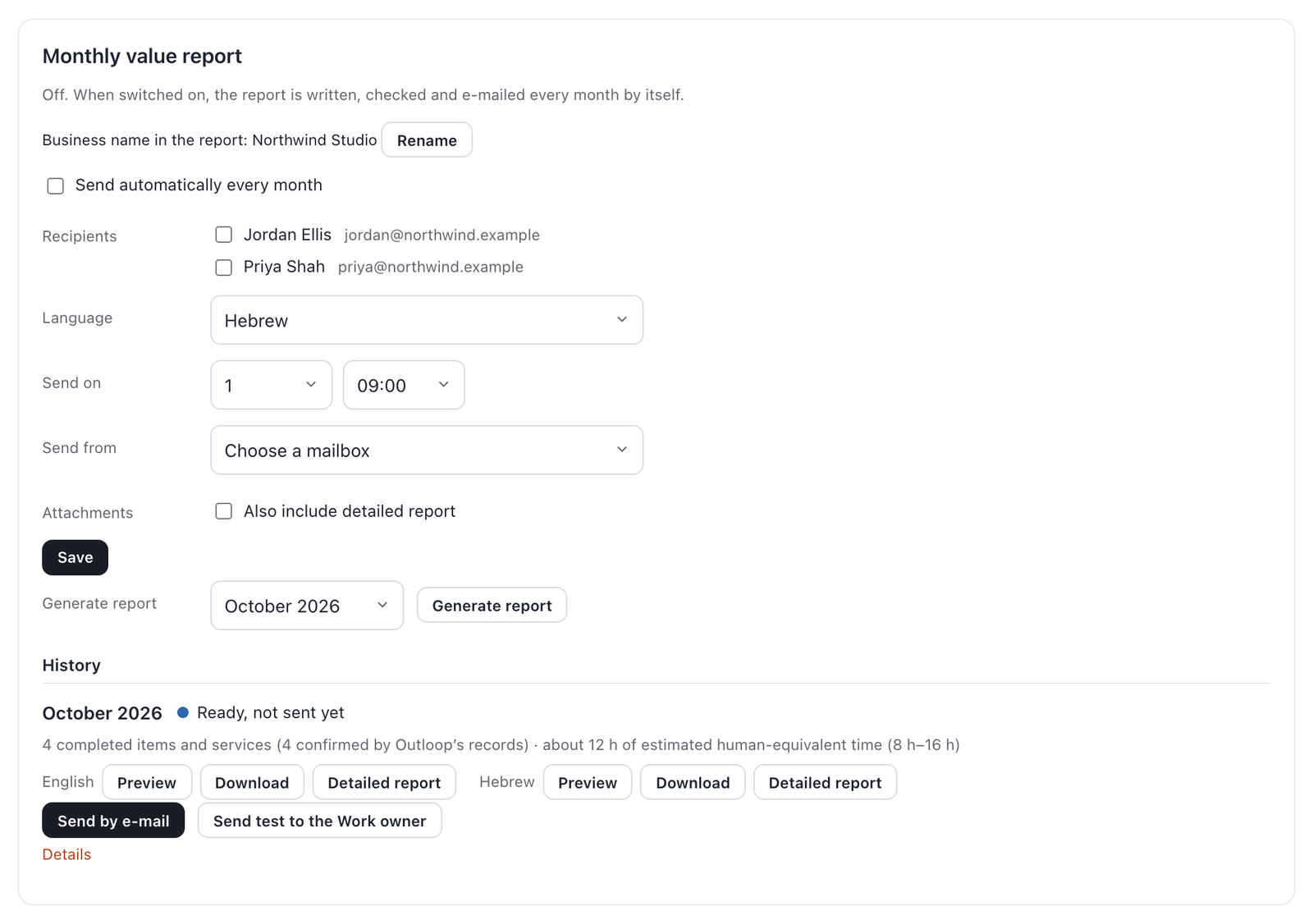
06 Before setup the card reads "Off". -
Fill the form (screenshot 07):
- Send automatically every month — tick it.
- Recipients — tick the people who should receive it. Only ticked people receive it.
- Language — English or Hebrew. (The form starts on Hebrew — check it.)
- Day of the month and hour — when it goes out. The report always covers the previous month.
- Send from — the workspace's Gmail connection.
- Also include detailed report — optional. The e-mail always carries the simple report; ticked, it also carries the detailed report (explanations, estimation rationale, evidence) as a second PDF.
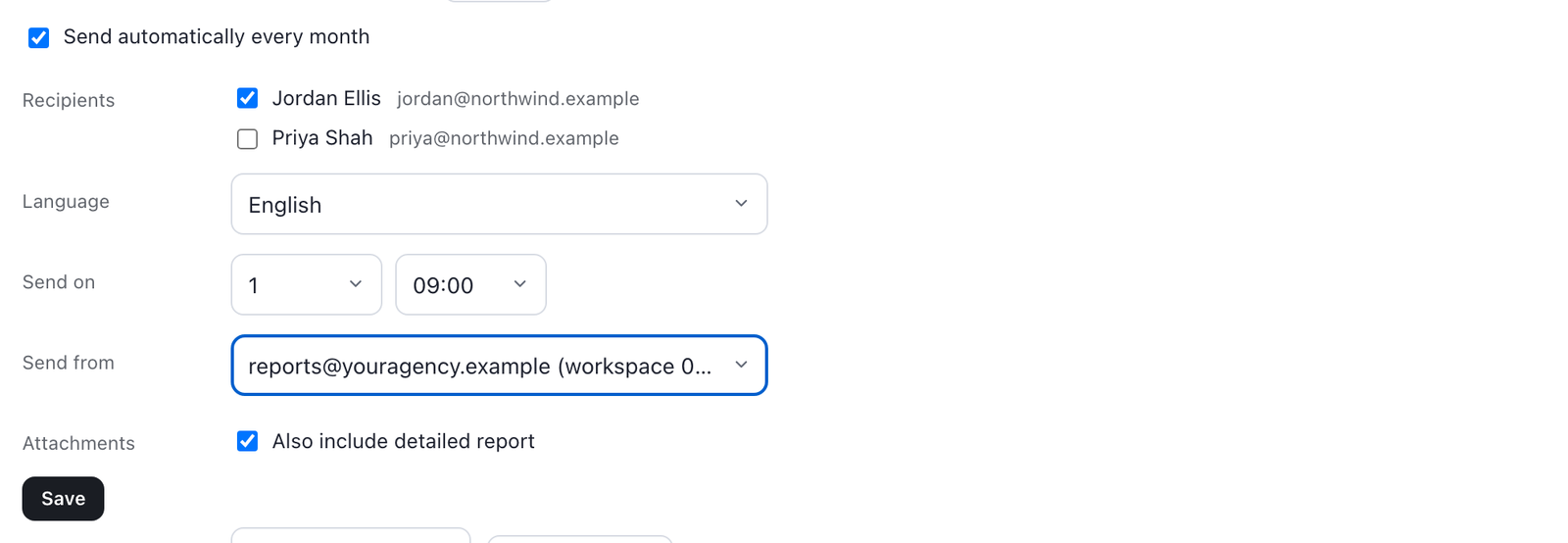
07 Tick who receives it, when, from which mailbox, and whether to add the detailed PDF. - Save. The card turns On (screenshot 08): "Every month Outloop writes this workspace's report, checks it and e-mails it on day 1 at 09:00 … Nobody needs to review it."

08 Saved: the report now goes out by itself every month.
There is no review step for the client report: once On, it is written, checked and sent by itself.
Which month goes out first: switching on never sends history. The first automatic e-mail is the first send day after you switched it on (e.g. switched on 20 November, day 1 → the October report is not sent; the November report goes out on 1 December). To send a past month, generate it and use Send by e-mail. A month you generated by hand before switching on is likewise never sent automatically — History says "Not sent automatically: this report was prepared before monthly sending was switched on. Use Send by e-mail to send it."
Statuses you may see in History
| Status | Meaning / what to do |
|---|---|
| Preparing / Preparing again in the background | AI is writing or re-checking the month; wait a few minutes |
| Held — waiting for you to try again | The checks could not confirm the text; press Try again |
| Held — prepared for the organization report | Prepared for the management report only; never sent to this client automatically (Send by e-mail sends it) |
| Not sent — needs attention | Sending failed after its retries; fix the cause (e.g. Gmail connection) and send by hand |
| Not delivered — not resent automatically / Not confirmed — not resent | Outloop never sends the same month twice by itself; check the sender mailbox, then send by hand if needed |
Check it before the client sees it
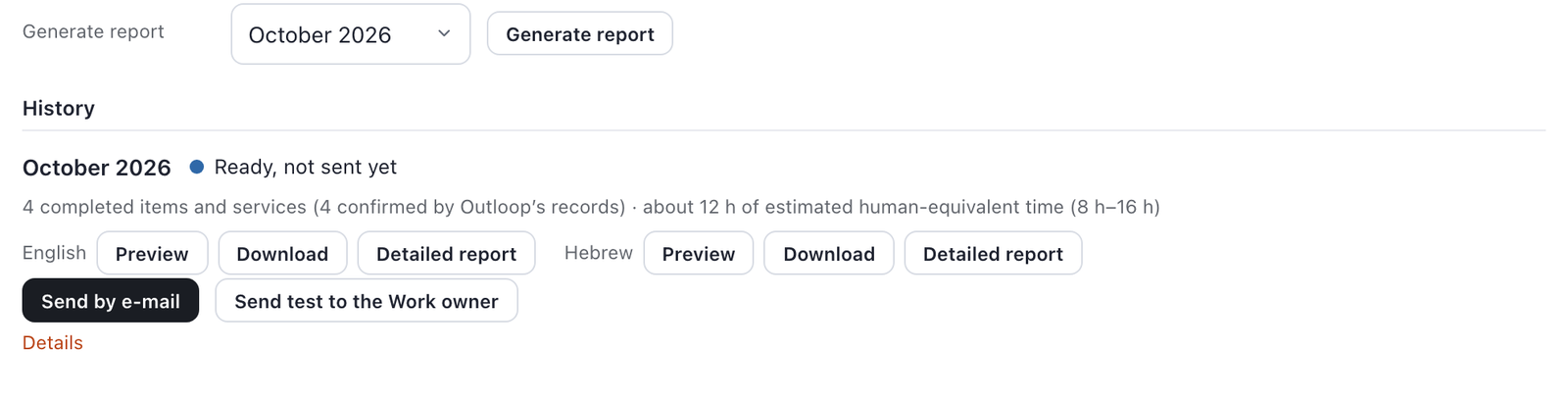
- Generate report (screenshot 09): pick a closed month → the report is prepared for preview and download. It sends nothing and changes no setting. The current month is never offered.
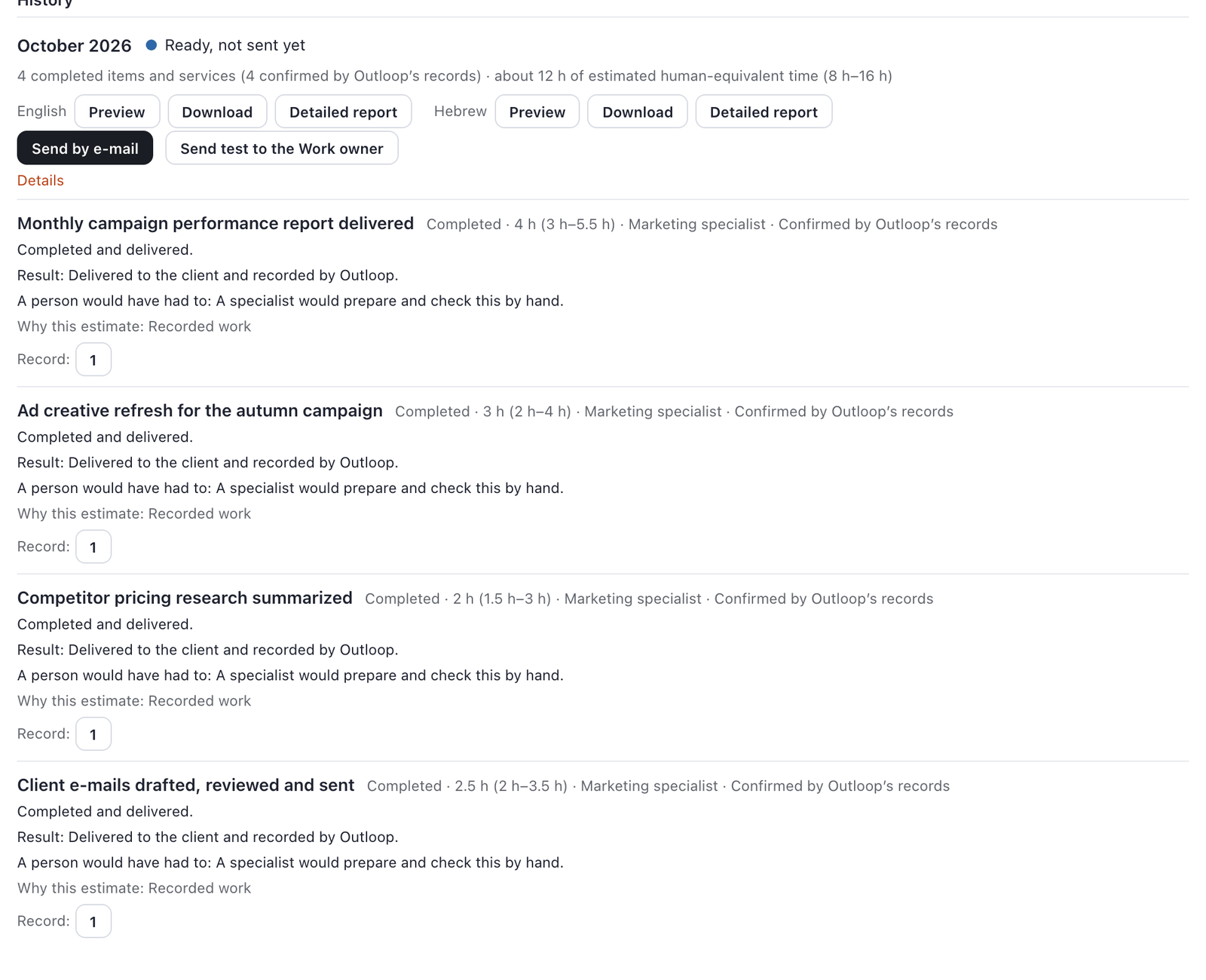
- History (screenshot 10): per month — Preview, Download and Detailed report, in English and Hebrew; Send by e-mail (manual send to the ticked recipients) and Send test to the Work owner (needs a Work owner with an e-mail address in this workspace).
- Generating a month that already exists opens the stored report (no new AI writing).
- Each month is sent at most once per recipient. A second press answers "This month's report was already sent to everyone on the list. Nothing was sent again."
Set up the management report
Authorize monthly sending. Save the draft, preview it, tick the authorization and choose Enable automatic monthly sending. Changes to the sender, recipients, included workspaces, language, schedule or missed-reports option require fresh authorization.
- Go to Activity & Reports › Value. Choose All workspaces in the header picker (the section is organization-wide either way).
-
Open Monthly management email → Set up management report (screenshot 11).

11 The organization report is set up on the Value page. -
Fill the form (screenshot 12):
- Send from, Email language, Day of month, Hour (0–23).
- Recipients — tick your managers. "Contact names and job titles do not grant authorization" — only your tick does.
- All eligible organization workspaces — read-only list of what is included (section 6).
- Also send missed reports when this Mac comes back online — optional (default off: a missed schedule stays a draft).
- Also include detailed report — optional.
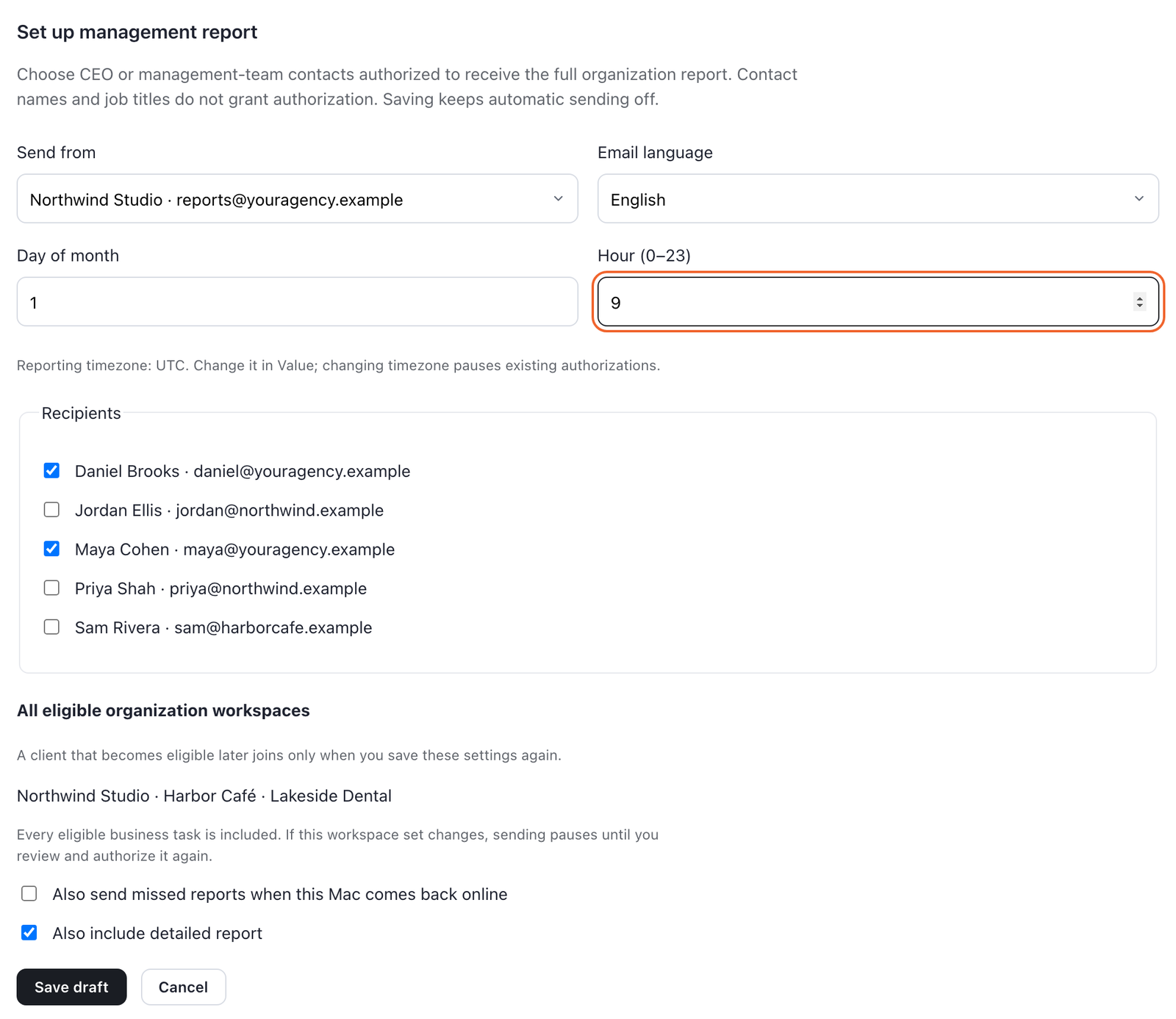
12 Only the managers you tick can receive the organization report. 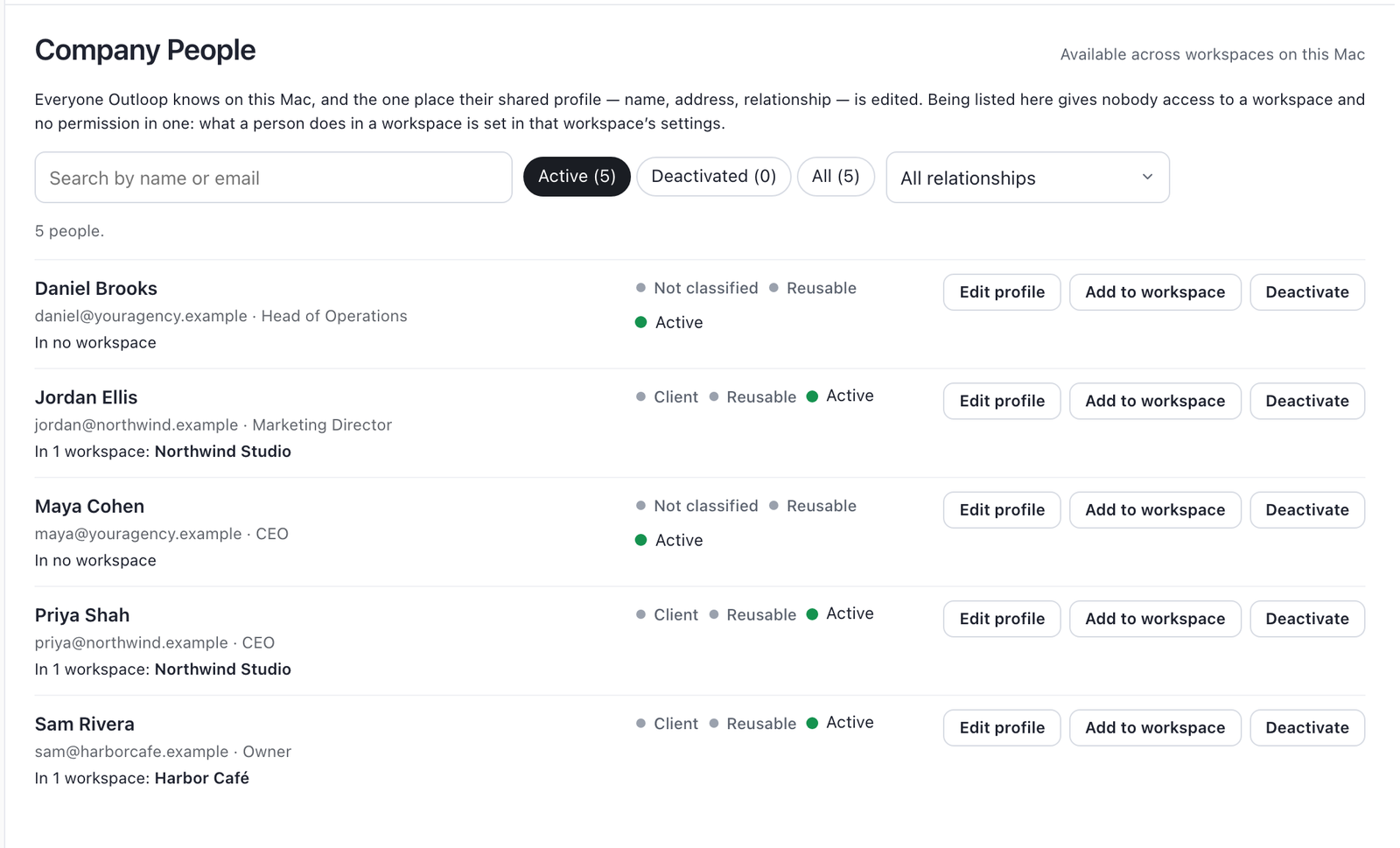
13 Management recipients come from Company People. - Save draft. Saving keeps automatic sending off (screenshot 14).
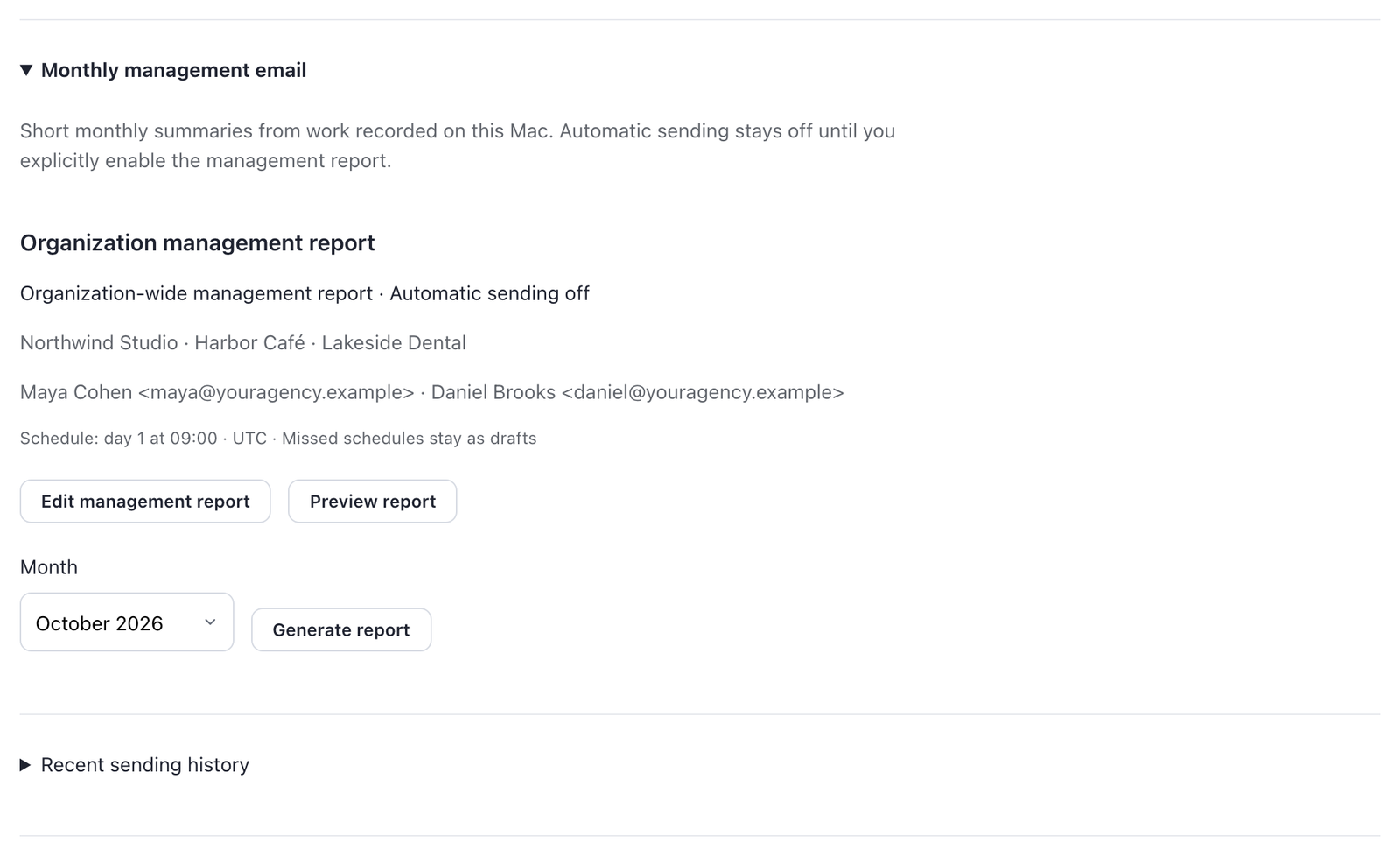
14 Saving keeps automatic sending off. - Preview report → choose the month → Generate preview (screenshot 15): you see exactly the e-mail, sender, recipients and included workspaces. A workspace with no report that month is listed as "Not available this month" — never as zero.
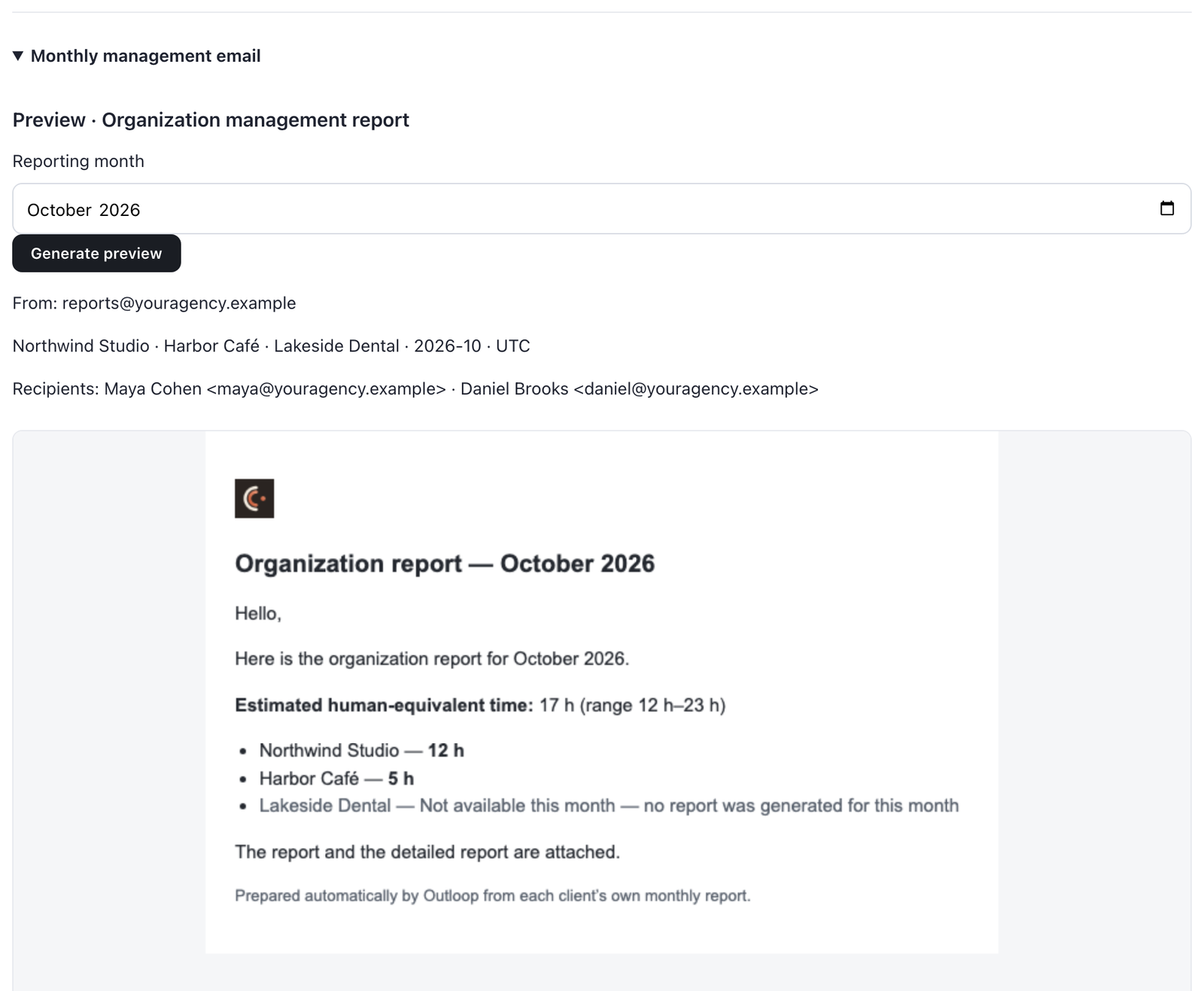
15 A workspace without a report is named, never counted as zero. -
Below the preview (screenshot 16) tick "I authorize each listed recipient to receive the full organization-wide management report and PDF attachment." Then either:
- Send this report now — one manual send; does not enable automation; or
- Enable automatic monthly sending — the report now goes out every month (screenshot 17). Changing the sender, recipients, included workspaces, language, day, hour or the missed-reports option later switches automatic sending off until you authorize again; changing only Also include detailed report keeps it on.
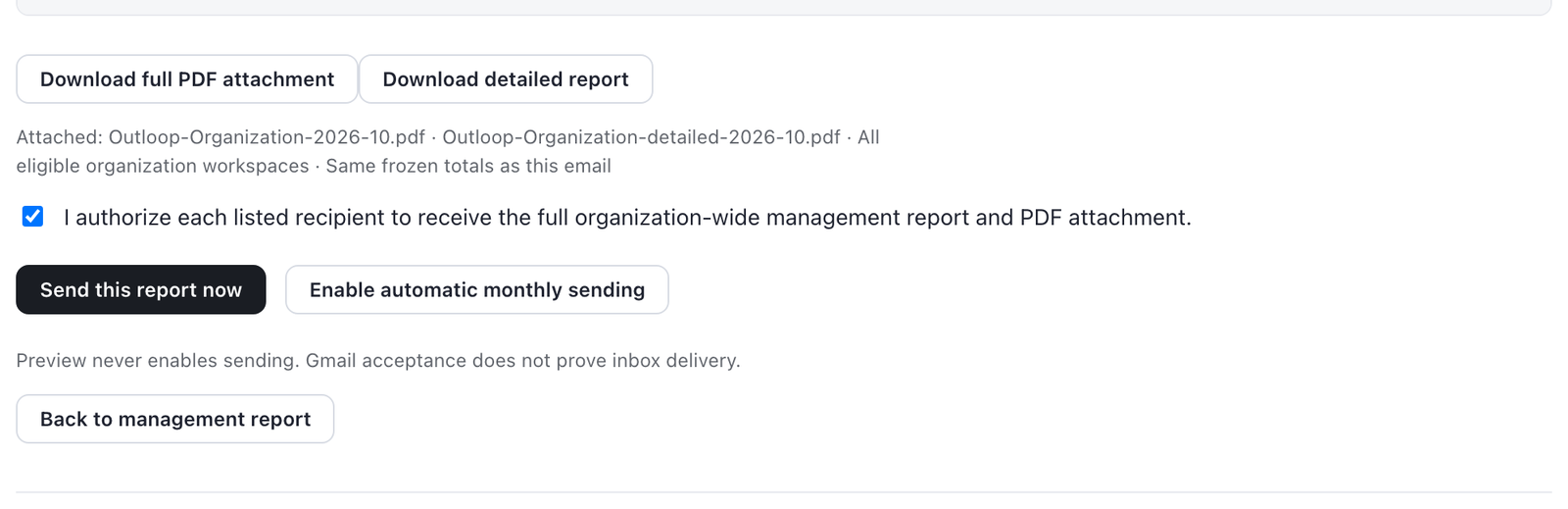
16 Authorize the recipients, then send once or enable monthly sending. 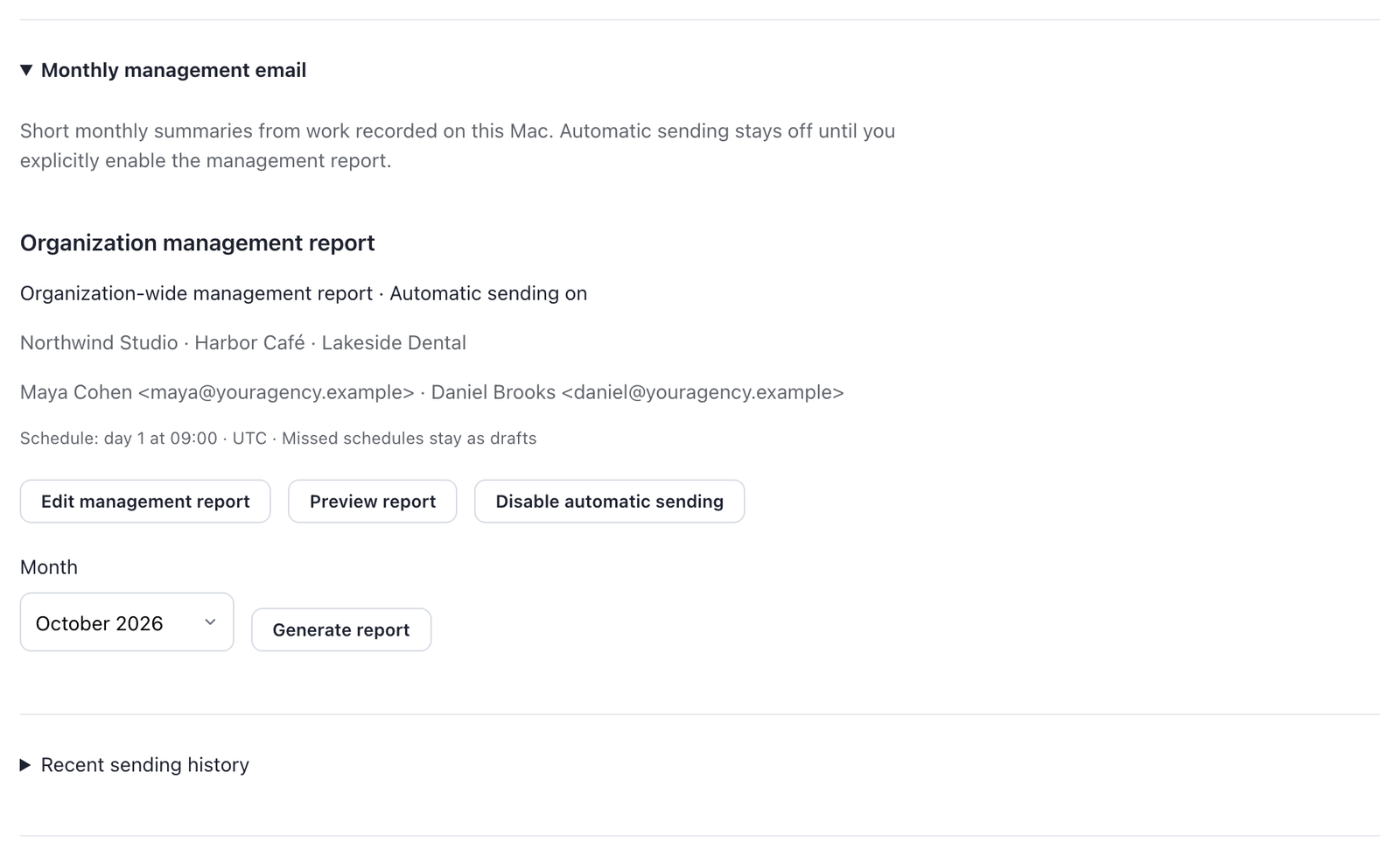
17 Enabled. Disable automatic sending stops it. - To stop: Disable automatic sending.
How the management report is built. For each included workspace it reuses that workspace's own validated report for the month. If a workspace has none, Outloop prepares one in the background for the management report only — it is never sent to that client, and the client's own settings are not changed. On the send day Outloop waits up to a day for workspaces still being prepared, then sends with the ones that are ready; any other workspace is listed "Not available this month".
Tip — schedule the management report after the client reports. If a client's own report is On and its send day is later than the management report's, that client is left out of that month's management report ("its own report is scheduled"). Put the management report's day after your clients' report day (e.g. clients on day 1, management on day 2).
The schedule uses the reporting timezone shown in the form; change it on the Value page (Timezone). Changing the timezone pauses existing authorizations.
Who receives what
| To… | Do this |
|---|---|
| Add a client contact to the client report | Add them in Workspace Settings › People (with e-mail), then tick them on the Monthly value report card and Save |
| Remove someone from the client report | Untick them on the card and Save (or remove them from the workspace) |
| Add/remove a manager on the management report | Make sure they are in Settings › Company People; then Edit management report, tick/untick, Save draft, and authorize again from the preview |
| Change sender, day, hour or language | Edit the card / Edit management report. For the management report these changes need a new authorization before automatic sending continues |
| Send one month again to someone new | History › Send by e-mail (client) or Preview › Send this report now (management). Recipients who already received that month are skipped |
A person's name, address and relationship (client, internal…) are edited once, in Company People; being listed there gives nobody access to a workspace and no report.
See the workspace People list and the Company People list.
What is counted
A task counts in Value and in the reports only when all of these are true:
- It is completed.
- It is classified Business work (not Testing mode / test run, not Unclassified).
- It is not excluded by an operator.
- It is not a duplicate of another task, and it is the top-level task (retries and sub-steps of one job count once).
- For the management report and the organization-wide totals on Overview and Value (not for a workspace's own client report): its workspace's Report eligibility is Business — included.
The client report then groups the counted work into business achievements written by AI, and every number is checked by code against Outloop's records. Each item is labelled "Confirmed by Outloop's records" (Outloop itself recorded the send/publish/change) or "as reported" (as the AI worker reported it when it finished). Prepared-but-not-delivered work is shown separately and never added to the total; open items carry no time.
Two workspace switches (Workspace Settings › Communication, screenshot 05)
Report eligibility — Business — included (default) · Internal · Development · Testing · Excluded.
- Only Business workspaces appear in the management report and in organization totals on Overview/Value.
- It never removes a workspace from its own client report.
- It is reporting metadata only: it changes no access, no Learning, and never touches reports already sent. Changing it shows a preview (Review reporting change) and can be undone.
- If the set of eligible workspaces changes, the management report pauses until you save its settings and authorize again.
Future runs — Business work (default) · Testing mode.
- Classifies new runs only. Use Testing mode while you test Outloop itself (it is not for customer QA work). Runs in Testing mode are not counted. Past runs are corrected per task (below).
Estimates
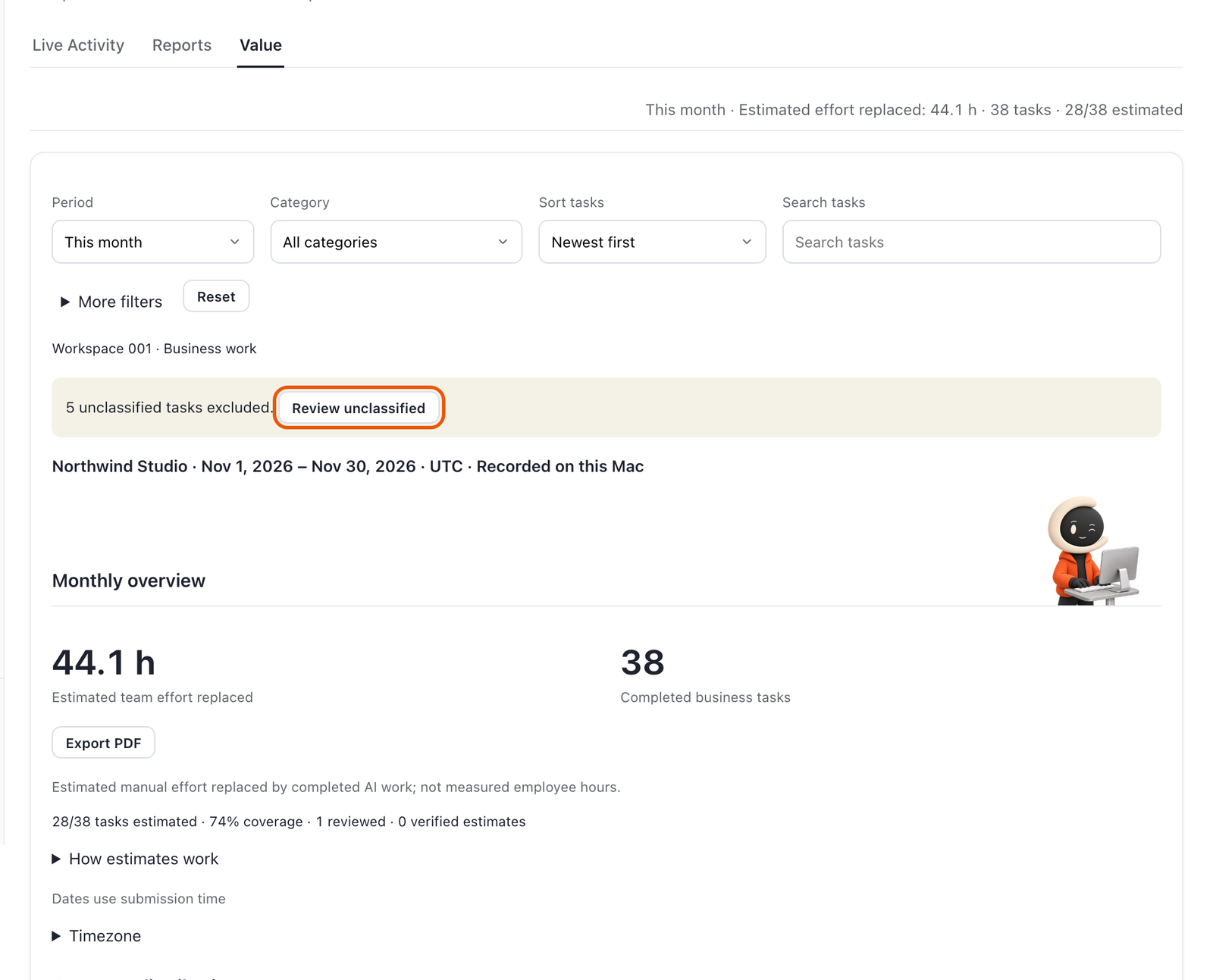
Time is an AI estimate per task (typical value plus a low–high range). The Value page shows how many tasks have a usable estimate ("28/38 tasks estimated · 74% coverage") and how many were reviewed or verified. An operator can review an estimate (section 7).
Correct the reporting records
An operator can correct the data behind the reports. All corrections are made on Activity & Reports › Value with the workspace selected (screenshot 18), apply to that one task (or to the selected tasks), and can be undone. They change the Value page at once and every report written afterwards. A month whose report was already written (by the schedule or by Generate report) keeps its frozen numbers, and a sent report is never changed — so make corrections before you generate a month or before its send day.
| Problem | Fix | Screens |
|---|---|---|
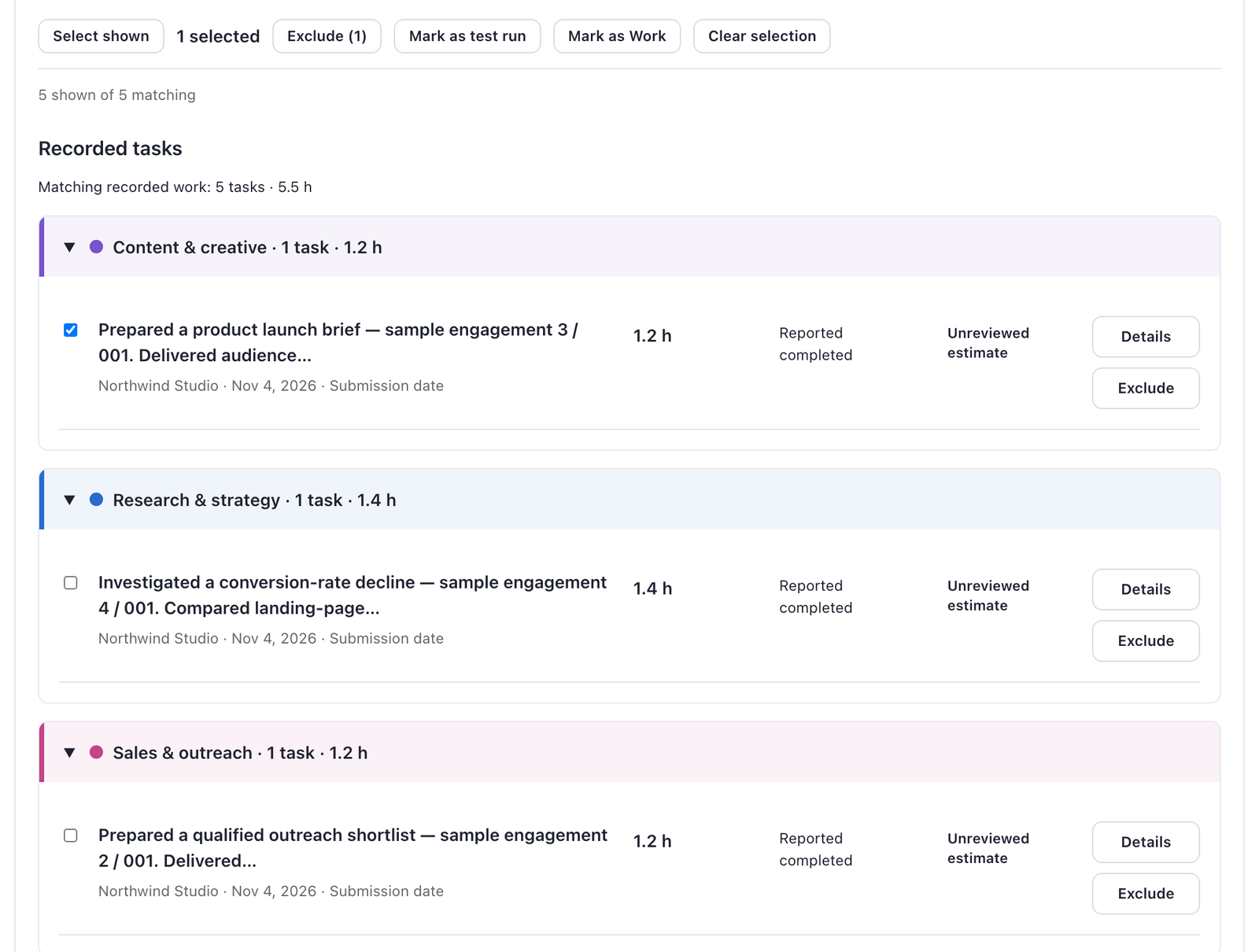
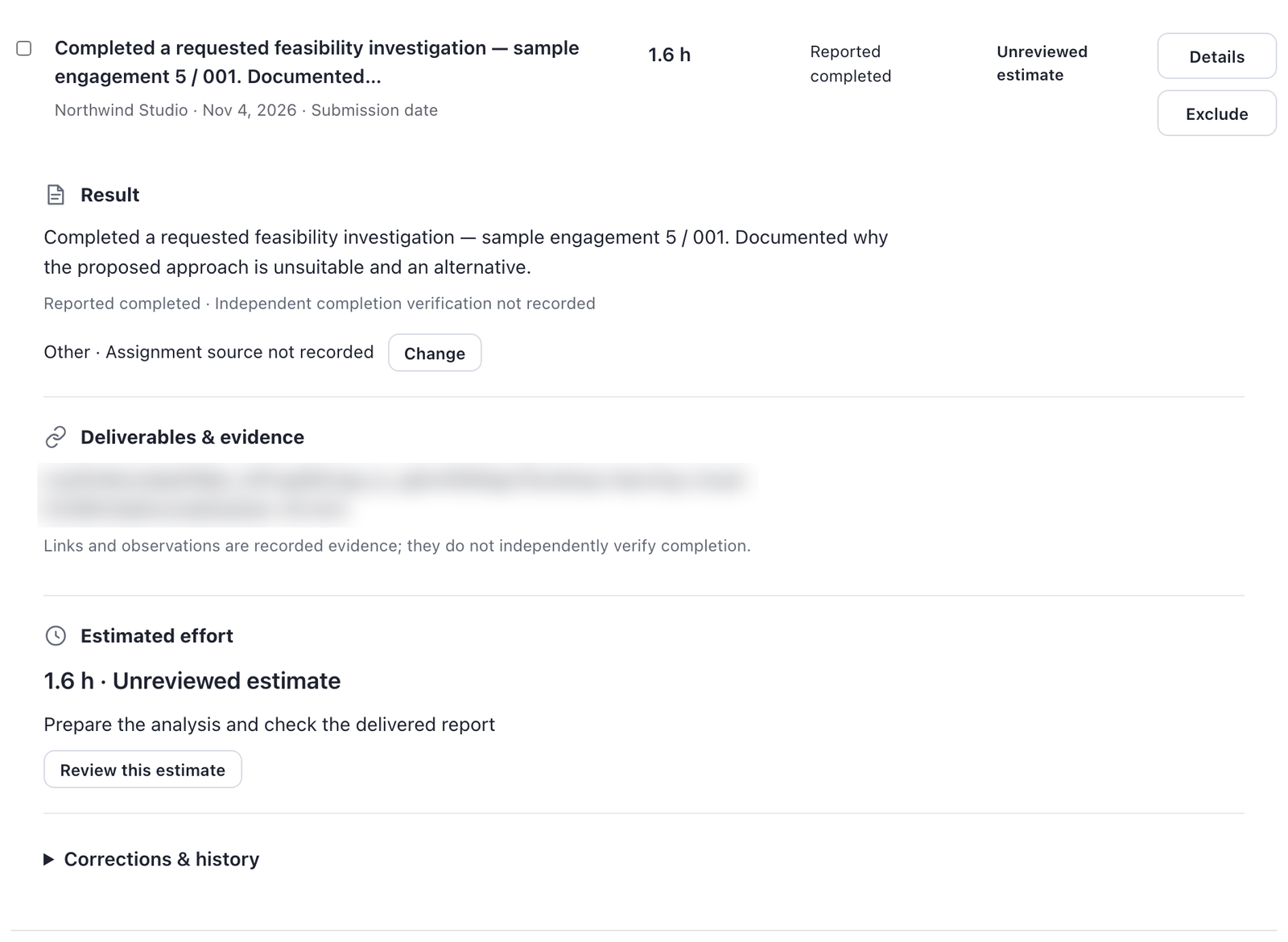
| Real work is missing because it was never classified | "N unclassified tasks excluded" → Review unclassified → select → Mark as Work | 18, 19, 24 |
| A test or internal run is counted | Select the task → Mark as test run (shows exactly how many task records change, then Apply classification) | 23, 24, 25 |
| A task should not be in the report at all | Exclude on the row (or select several → Exclude (n)). Undo appears right away; the Source › Excluded filter lists excluded tasks with Restore tasks | 20, 26 |
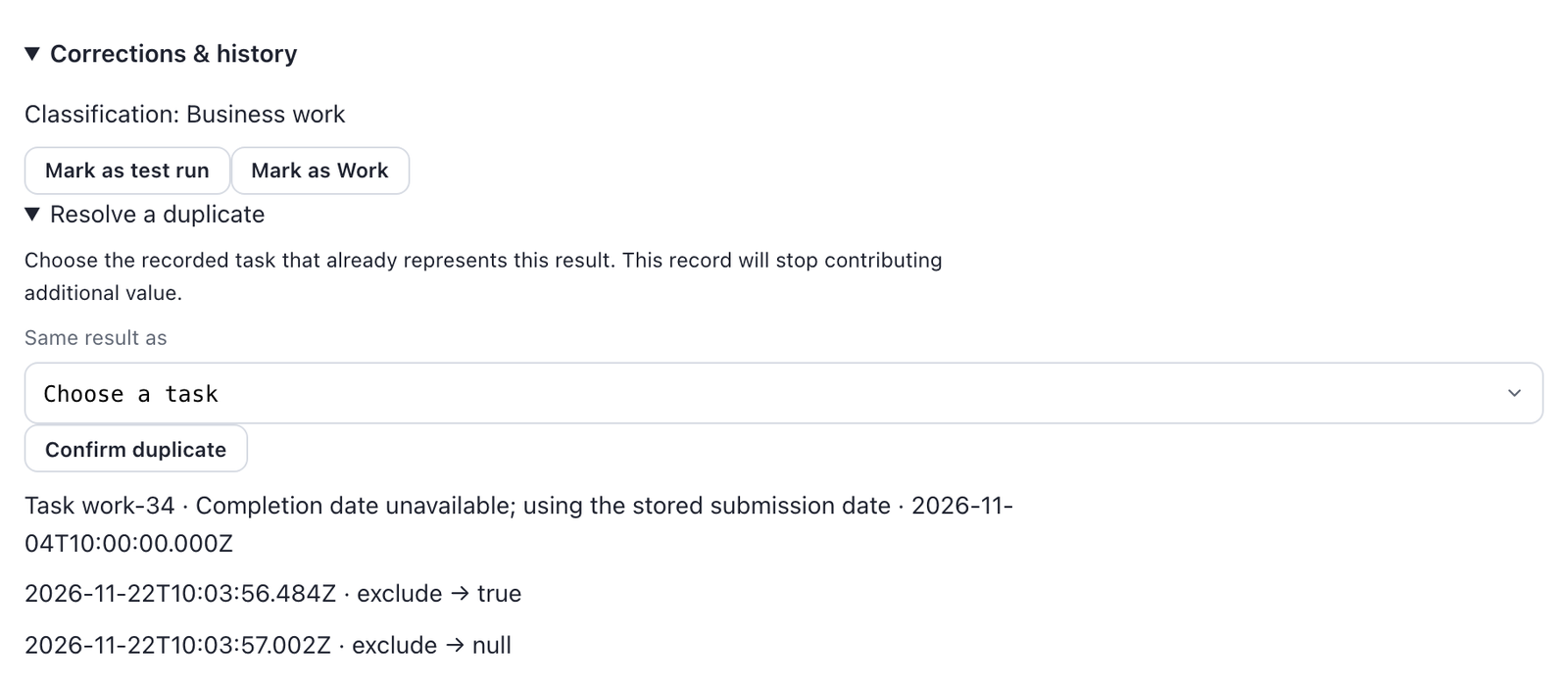
| The same result was recorded twice | Task Details › Corrections & history › Resolve a duplicate → choose the task that already represents it → Confirm duplicate. Restore as a separate task reverses it | 23 |
| Wrong category | Details → next to the category, Change → choose: Content & creative, Research & strategy, Campaign operations, Reporting & analytics, Sales & outreach, Operations & automation, Other | 21, 22 |
| The time estimate is wrong | Details › Estimated effort › Review this estimate → set the outcome, optionally corrected minutes, reason and evidence → Save review | 21 |
| A whole workspace should not be in the management report | Workspace Settings › Communication › Report eligibility → choose Internal / Development / Testing / Excluded → Review reporting change → confirm | 05 |
| A workspace is only testing from now on | Future runs → Testing mode → Save default | 05 |
Every correction is recorded in the task's Corrections & history with time and value (screenshot 23 shows an exclude followed by its undo). Nothing here changes access, credentials or what the AI worker may do — it is reporting data only.
When to correct and when not to: correct classification (work vs. test), duplicates, exclusions and categories freely — they are facts about the work. Do not use exclusions to make a month look better; the report states how much of the work Outloop itself confirmed.





Frequently asked questions
Does saving the client report send anything immediately?
No. It sends on the next scheduled day and hour. Generate report never sends.
What happens if the Mac is off at the scheduled time?
The client report sends the latest closed month on the next hourly run after the Mac is back (never an older month). The management report does that only if Also send missed reports when this Mac comes back online is ticked; otherwise the missed month stays a draft you can send from Preview.
Can a client see other clients?
No. The client report is built only from its own workspace's records. Only the management report covers several workspaces, and only your ticked managers receive it.
Why does a workspace say "Not available this month" in the management report?
Outloop had no usable report for it that month: no recorded business work, the report was held or blocked by its checks, it was still being prepared at send time, or the client's own report was scheduled later (see the tip in section 4). It is never shown as zero.
Does Gmail "accepted" mean delivered?
No — history records Gmail acceptance; inbox delivery is not proven by it.
Can I send a report for a custom date range?
Not in this version — reports are per closed calendar month.